بـــرنس ســوفت: أندرويد

اخر الأخبار

‏إظهار الرسائل ذات التسميات أندرويد. إظهار كافة الرسائل
10:48 ص

Gm5 plus bypass google account

اهلا ومرحبا بكم في مدونة البرنس لكـل ماهو جديد ومميز في عالم السوفت


أقدم لكم اليوم آحبائي 


تخطي حساب جوجل جينرال موبايل

2018

Gm5 plus bypass google account 

7.1.1 


 تم الحل عبر
الأداة
minimal adb fastboot v1.4.2 setup

تحميل الأداة هنا

والطريقة هو أدخل الجهاز الى وضع fastboot بالضغط على زر التشغيل وخفض الصوت حتى يدخل الجهاز وضع fastboot كما في الصورة

ونحدد وضع restart boot loader


وثم عبر تنصيب الأداة على الكمبيوتر 

أوصل الجهاز على الكمبيوتر وأفتح الأداة كما في الصورة 

وأكتب الأمر التالي 

fastboot erase frp


أنتظر قليلاً كما في الصورة 

وبعدها نقوم بأعادة أقلاع الجهاز كما في الصور وتمت العملية بنجاح بفضل الله 


مبروك عليك الحل 


8:35 ص

تحميل أداة MAM Tools V1.0.8 مجانا + طريقة التفعيل والتشغيل


اهلا ومرحبا بكم في مدونة البرنس لكـل ماهو جديد ومميز في عالم السوفت


اليوم معنا أداة إخرى رائعة للتعامل مع أجهزة الاندرويد بإحترافية عالية

وهى أداة MAM Tools 

 - نبذة بسيطة عن الاداة -
وهذة الاداة مدفوعة غالبأ لما تحتوية من مميزات وخواص مهمة

وتضم عمليات كثيرة فى اوضاع ADB و Fastboot

كما تحتوى على عمليات كثيرة لفئات وموديلات أندرويد مختلفة ومنها

Samsung , HTC , LG , Nokia 

كما تحتوى على قوائم وعمليات خاصة باجهزة MTK 
وقائمة خاصة بالتعامل مع EMMC 
بالاضافة لعمليات إيقاف الحماية FRP وحذف حسابات جوجل لاجهزة الاندرويد
وبها أيضأ الكثير والكثير من العمليات الاخرى يمكن إكتشافها بنفسك 
وسنقوم فى هذا الموضوع بشرح طريقة تثبيت الاداة 
وطريقة التفعيل الصحيح للاداة حتى يتم تشغيل الواجهة النهائية بنجاح
أولا قم بتحميل الاداة من الرابط التالى
عد تحميل الاداة قم بفك الضغط عنها على سطح المكتب
ولكن أولا تأكد من إغلاق الانتى فيرس على جهازك 
وبعدها قم بتثبيت الاداة بطريقة عادية مثل اى برنامج 
باسورد تثبيت البرنامج
setup password// GPT PRO TEAM


- بعد الانتهاء من تثبيت البرنامج قم بتحميل الكيجن الخاص بتفعيل البرنامج 
Authorized_MAM_TOOLS_V1.0.8_KeyGen
لان قم بتشغيل البرنامج وملف التفعيل 
ثم قم بنسخ الرقم السيريال الذى سيظهر لك عند تشغيل البرنامج
وبعدها قم بلصقة فى تطبيق التفعيل وسيتم توليد رمز أخر قم بنسخة ولصقة فى البرنامج الاساسى
وبعدها قم بالتضغط على Activate ليتم تفعيل البرنامج وتشغيلة


والان تم تفعيل البرنامج وتشغيلة بنجاح


9:09 ص

ما هو ال BusyBox ؟ و كيف تقوم بتثبيته على هاتفك الأندرويد ؟


اهلا ومرحبا بكم في مدونة البرنس لكـل ماهو جديد ومميز في عالم السوفت


سم الله الرحمن الرحيم .
إذا كنت تمتلك هاتف أندرويد و قمت بعمل روت له فأنت بلا شك قد سمعت عن ال BusyBox . العديد من التعديلات أو ال Mods تتطلب تثبيت BusyBox على هاتفك . فما هو ال BusyBox ؟ و كيف أقوم بتثبيته على هاتفى الأندرويد ؟ كل ذلك و أكثر نتعرف عليه فى هذا الموضوع .

ما هو ال BusyBox ؟

هى مجموعة من الأوامر المتخصصة أو الأدوات التى يمكن تثبيتها على الهاتف الأندرويد الذى به صلاحيات الروت لمنح تطبيقات معينة المزيد من الوظائف .


إذا بعد أن تعرفنا على ما هو ال BusyBox  دعونا نبدأ فى شرح طريقة تثبيته .

الخطوات

الخطوة الأولى :  تثبيت تطبيق BusyBox 

قم بالتوجه لمتجر جوجل بلاى و قم بالبحث عن تطبيق BusyBox أو يمكنك الضغط على الرابط الموجود بنهاية الموضوع لتوجيهك مباشرة للتطبيق و قم بتثبيته بالطريقة العادية . هذا التطبيق يقوم المطور بتحديثه بشكل دورى باخر الأوامر .


الخطوة الثانية : تثبيت أوامر ال BusyBox

قم بفتح تطبيق BusyBox و مباشرة سوف يطلب منك صلاحيات الروت قم بمنحه صلاحيات الروت . التطبيق يحتاج صلاحيات الروت لأنه يضيف بعض الأوامر الخاصة إلى مجلد النظام . 


ستظهر لك رسالة قم بتجاهلها و إغلاقها .


قم بالضغط على زر install  لتثبيت أوامر ال BusyBox على هاتفك .


 بعد حوالى 10 ثوانى سوف تظهر لك رسالة تؤكد لك نجاح العملية .


و بذلك تكون قد قمت بتثبيت ال BusyBox على هاتفك الأندرويد و سوف تتمكن من تثبيت التطبيقات و التعديلات التى تتطلب وجوده و بالتالى سيصبح الروت أكثر قوة و فعالية .

ملاحظة : يمكنك إزالة تطبيق BusyBox بعد تثبيت الأوامر من خلاله حيث أن إزالته لا تحذف الأوامر التى تمت إضافتها لمجلد النظام و لكن يُنصح بتركه لتحديث أوامر ال BusyBox بإستمرار .

 أتمنى أن يفيدكم الموضوع . فى أمان الله و حفظه و رعايته .


8:39 ص

UNLOCK SCREEN J710F Frp:OFF U1 ,U2 ,U3 ,U4


اهلا ومرحبا بكم في مدونة البرنس لكـل ماهو جديد ومميز في عالم السوفت


ملف فك قفل الشاشة Frp:ON SM-J701 لجميع الحمايات U1 ,U2 ,U3 ,U4


UNLOCK SCREEN J710F Frp:ON U1 ,U2 ,U3 ,U4,U5


السلام عليكم نقدم لكم ملف فك قفل الشاشه


وهو عبارة عن ملف SBOOT بعد تفليشه نقوم بعمل 
RESET FRP\Rectivation BY UART
الذي يدعمه معظم البوكسات
بعد اعادة تشغيل الهاتف سترى ان الهاتف يعمل بدون
حساب جوجل


8:18 ص

REMOVE LOCK SCREEN S9+


اهلا ومرحبا بكم في مدونة البرنس لكـل ماهو جديد ومميز في عالم السوفت


اليوم جايب لكم ملف فك قفل شاشة S9+

مع العلم الملف حصري من موقع الفريق المميز 


+REMOVE LOCK SCREEN S9


كل ماعليك هو تفليش الملف في خانة AP

منقووووووول من موقع THE HELL TEAM


لتحميل الملف 


6:04 ص

What Google is doing to win the fight against Apple


Google doesn’t just want to beat Apple. It wants to beat everyone. Apple can be seen as the most serious competitive challenge that the company has been facing over the last few years. Apple’s iOS platform has attracted massive consumer loyalty and incredible brand ratings both within and outside the United States. But every New Year, Google appears to be making progress towards being the number one company in the mobile and tech game. Here’s a look at some indications that the company could finally beat Apple in this game.
Alphabet is no. 1

Apple had been the most valuable public company worldwide for 4 consecutive years. But a recent decline in share prices has seen this situation change. The company is experiencing slowing iPhone sales, and that’s bad news for their revenues.

On the other hand, Google’s parent company – Alphabet – has for the first time made it to the number 1 spot in the market. The company has been seeing meaningful growth in all areas, according to Alphabet CEFO Ruth Porat. Currently, Alphabet appears to have taken the lead. But the market-cap contest is something to watch in the ongoing batter between Google and Apple.


Side Note: Looking to start your own website/blog? We highly recommend using Bluehost, and you can get started now at $2.95/month, which is an exclusive deal only available here on Updato!

Bring Android One home

A new report that surfaced online this week claims that Google is planning to introduce the Android One budget platform in the United States. Reportedly, these devices will be selling for anywhere between $200 and $300. The company’s aim is to popularize the Android brand, which has been found to be less popular than Samsung’s Galaxy brand in the local market. If the company executes this move, it’ll likely help boost its local prospects, and position it better to win the fight against Apple.
Pixel – beat Apple at what they do best

Google is now building its own phones and a massive range of top-notch hardware devices that are challenging Apple at its own game. Late last year, the company introduced Pixel, a high-tech smartphone that is comparable (even better) than Apple’s iPhone 7. In a feat that highlights the company’s increased capacity, Google built Pixel its entirety. It has the highest rated smartphone camera in the market today, a long-lasting battery, an impeccable design and unlimited storage through Google’s cloud services. With Pixel, Google now has a handset that can directly challenge Apple’s insanely popular iPhone brand.

The web TV service race

Google appears much closer to launching a web TV service than apple. That’s according to information published in the Wall Street Journal. Google has already made a deal with US TV network CBS and is pursuing a partnership with Disney and 21st Century Fox. Rumor has it that Google’s web TV service will be called Unplugged and will be available for about $30. The company is hoping to pick up subscribers who have been trying to break away from traditional satellite and cable services.

In the next few years, it’ll be interesting to see who’ll emerge victorious in the epic mobile and tech competition. Google appears to be on course to being the number one firm in this domain, but Apple has also been rumored to be working on electric self-driving cars, Virtual Reality Gear, and other 

innovative products that will likely be a game changer.
5:59 ص

6 ways to fix the Google Play services has stopped error


Tired of the Google Play services has stopped message 
popping up every time you try to download or update? Here’s everything you need to know about Google Play services and how to resolve the dreaded errors that come with it.
You don’t have to be a tweaking genius on your Android to encounter errors and bugs every now and then. The open-source nature of the Android OS along with dozens of OEM brands make Android great for freedom of use. However, the same traits of Android also cause it to malfunction every now and then, bringing up errors like Google Play services have stopped when using various apps.
While not among the apps you deliberately download from the Google Play Store, the Google Play services app is what keeps all your Google apps in line. It essentially acts as a software updatemanager for all your Google apps. This includes your favorites such as Google Photos, Android Device Manager, Gmail, Google Play Music and dozens more.
Side Note: Looking to start your own website/blog? We highly recommend using Bluehost, and you can get started now at $2.95/month, which is an exclusive deal only available here on Updato!
We’ve covered the topic of Google Play service in lengths already, explaining what the apps actually do. There is no practical way to use any of the Google apps without the Google Play services. Hence, the Google Play services has stopped error message is one that you can’t simply ignore.
Here’s a quick preview of the 6 ways we’ll be using to troubleshoot the Google Play services has stopped error:
  • Rebooting Android to fix the error
  • Updating the Google Play services app
  • Clear the Google Play services app cache
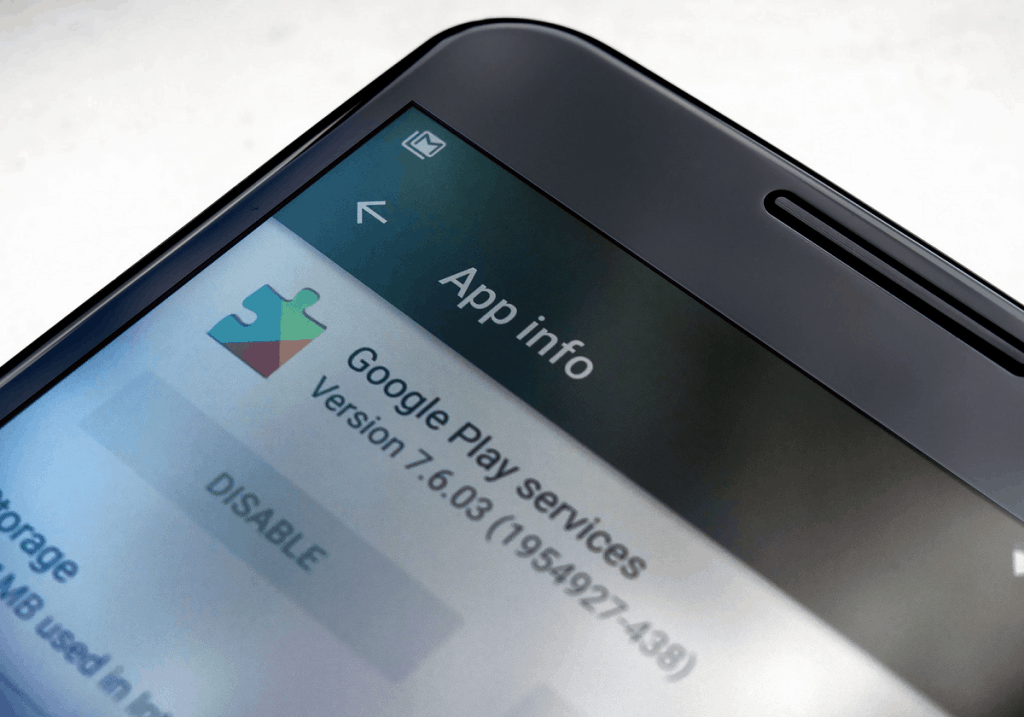
  • Disable Google Play services
  • Uninstall and reinstall Google Play services updates
  • Wipe device cache
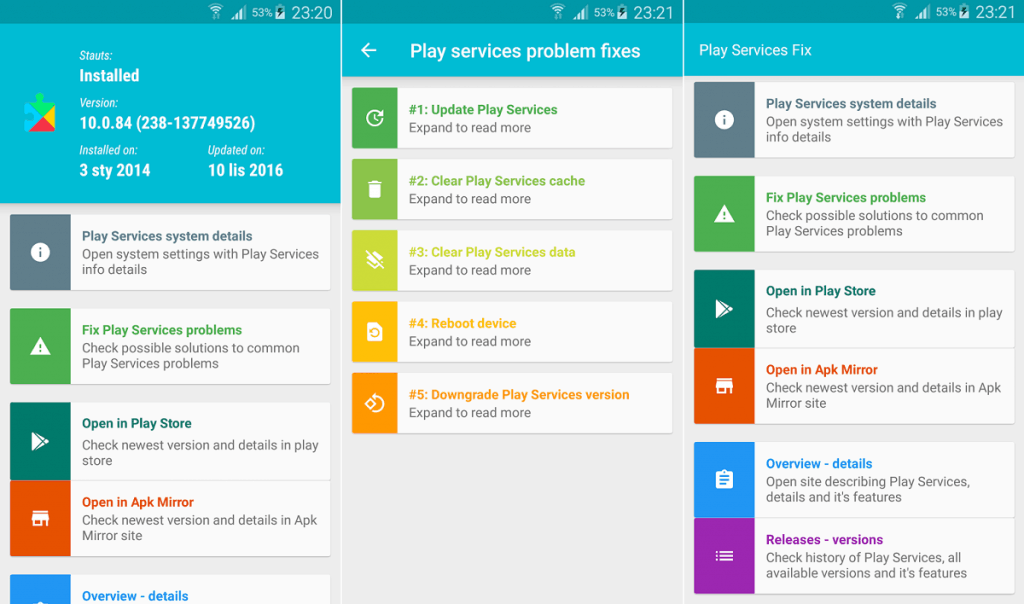
  • Using Play Services Fix Info app
Now let’s dive into the solutions that can be used to get rid of the annoying Google Play services issue one-by-one.

How to fix the Google Play services has stopped error

While you can simply make do by uninstalling apps that pop up errors, Google Play services isn’t one of them. Not only does the error message appear every time you open the Google Play Store, it is bound to surface every time you use any Google app. Since one solution might not work, we’ve tested the most popular ways to fix this Google Play services error.

Solution No. 1: Reboot your device

“Have you tried turning it off and on again?” seems like a tech support question or even an internet meme. However, that doesn’t make this simple and effective technique any less useful. Whether the error started popping up after a certain app crashed or some background service that decided to go haywire, a simple restart might just be all that you need.
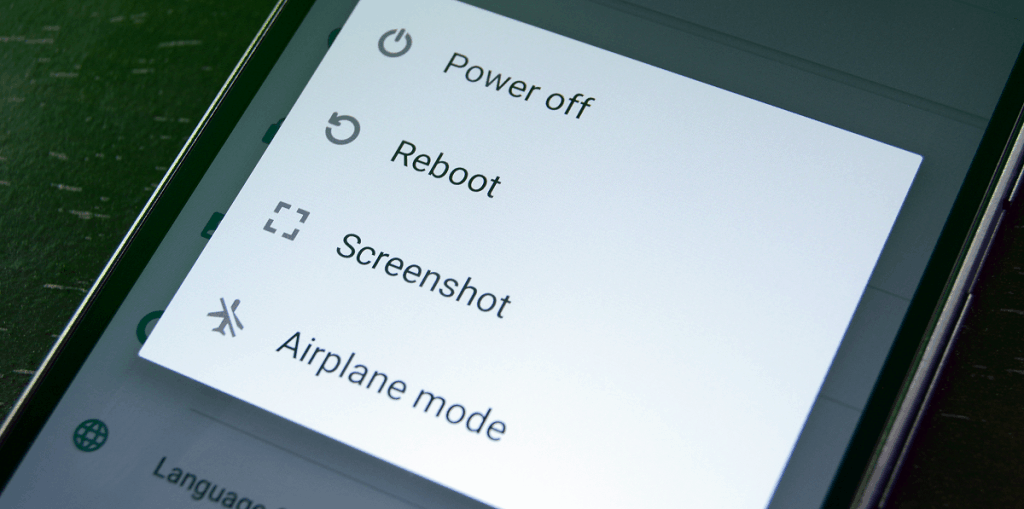
  1. Press and hold down the Power button on your Android until the boot pop-up window is displayed on the screen.
  2. Depending on your device, select the Restart or Reboot button and wait while the process completes.
  3. Once your device reboots, check to see if the Google app that was giving back the error has been resolved.
However, if you’ve tried this method already and the Google Play services has stopped error still continues to pop up, move on to the next step.

Solution No. 2: Update Google Play services app

If you’re surviving in this world on a limited mobile data plan with 1MB at a time, having the Google Play Store updates set to manual is acceptable. However, doing this might leave your Android device with outdated apps, one of which could be the Google Play services.
Whether you’re experiencing the Google Play services error on the Google Play Store itself or other Google apps, the most common solution is to make sure that your apps are up to date.
  1. From the home screen of your Android device, head over to the Google Play Store app on your Android device.
  2. Press the three-line menu button on the top-left corner of the screen and select My Apps from the slide-out menu.
  3. This menu screen will display all of the installed apps, along with the apps with uninstalled updates at the top.
  4. Press the Update All button on the top-right corner of the screen and wait while the app updates are installed.
  5. Reboot your Android device and check to see if the Google Play services error has been fixed.

Setting up auto-updates is always a good idea

Google is known to regularly update the Google Play services app to ensure that these types of errors don’t pop up often. If you’re not restricted by a monthly data plan or have access to a wireless network at the workplace or at home, we urge that you set the Google Play Store to automatically update apps.
  1. Open the Google Play Store app on your device and press the three-line menu on the top-right corner of the screen.
  2. Scroll down to find the Settings button in the side menu, and then tap on the Auto-update apps
  3. Here you will be able to choose from the three options – Do not auto-update apps, Auto-update apps at any given time, and Auto-update apps over Wi-Fi only.
Once you have chosen the option to auto-update apps based on your preference, you’ll most likely never have to worry about app crashes and annoying errors again.

Solution No. 3: Clear cache of Google Play services app

Google Play services is a framework that controls all of your Google apps and itself is comprised of an app. Just like any other app that gets wonky, you can easily reset the Google Play services app to its default state by using the clear cache option that the service automatically fetches.
  1. Head over to the Settings app on your Android using the app-drawer or the gear icon in the notification window.
  2. Scroll down to find the Apps menu in the Settings. The menu may be named Application Manager on certain devices.
  3. With the entire list of apps on your phone in front of you, scroll down to find Google Play services.
  4. Press the Clear Cache button and confirm your action.
  5. Head back to the home screen and reboot your device to make the changes you’ve just made set in.
With the app cache cleared, Google Play services will once again run in the background and fix any pertaining issues. This should help clear out any broken elements of the app cache and get rid of the Google Play services has stopped error from popping up.

Solution No. 4: Disable Google Play services

Considering that Google Play services are the heart and soul of all Google apps, most of the latest Android versions do not allow you to remove Google Play services entirely. In fact, when you disable Google Play services, it makes apps like the Play Store and Gmail to stop working.
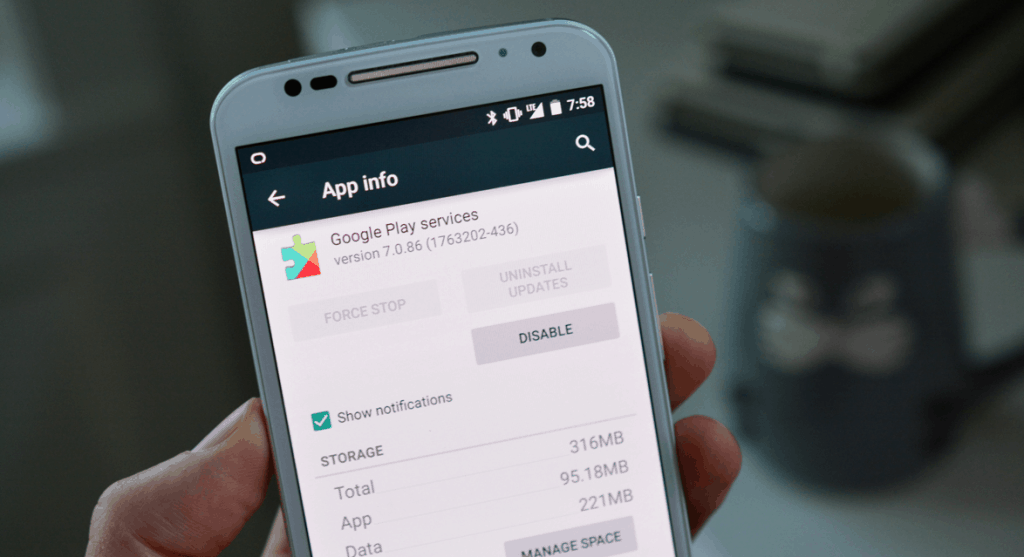
While you cannot remove the Google Play services app unless your Android device is rooted, you can disable the app and make the error message stop. However, this is just a hotfix to make the error message stop and does not solve the problem entirely. To disable the Google Play services app, you will first need to disable Android Device Manager from the Settings:
  1. Head over to the Settings app and scroll down to find Security – Device administrators.
  2. The Android Device Manager will be enabled by default, so uncheck the box and confirm your action.
Once you’ve removed Android Device Manager from the Device administrators, you will be able to disable the Google Play services. However, we recommend that you do not disable the Google Play services app as it can screw up a list of other Google apps along with it.

Solution No. 5: Uninstall and reinstall Google Play services updates

Google Play services have precedence over other Android apps in regards to battery/data usage, and this extends to automatic updates. However, Android  gives you the ability to remove the installed updates and reinstall updates from the Google Play Store.
  1. Head over to the Settings app on your Android using the app-drawer or the gear icon in the notification window.
  2. Scroll down to find the Apps menu in the Settings. The menu may be named Application Manager on certain devices.
  3. With the list of apps on your phone in front of you, scroll down to find Google Play services.
  4. Press the Uninstall Updates button and if you can’t see it on the screen, press the three-dot menu icon on the top-right corner to find it.
Once you have removed the latest updates, the Google Play services app will be restored to the stock version. Now you can go ahead and reinstall the latest updates for Google Play services right from the app manager menu.
  1. On the App info screen of Google Play services, scroll down to find the App details.
  2. You will be redirected to the Google Play Store app on the Google Play services app page.
  3. Press the Update button and wait while the latest version of the Google Play services is installed.
Go back to the main screen on your Android device and clear all the background data. We suggest you reboot your phone just to make sure that all the new changes set in. With the app refreshed with the latest update, you’ll most likely not have to worry about the Google Play services has stopped error from popping up.

Solution No. 6: Wipe device cache

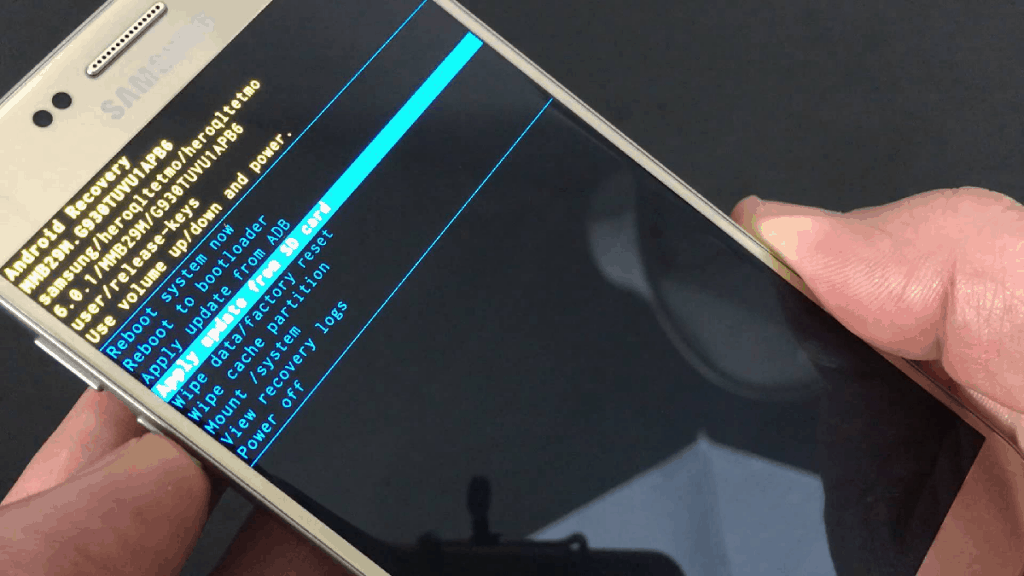
Since Google Play services is a framework for dozens of other Google apps to run on, issues with any of these apps can cause the Google Play services has stopped error to show up. The easiest way to clear the cache for all the apps at once is putting the recovery mode of Android. The stock recovery mode comes with the ability to use the “wipe device cache” option.
  1. Press and hold the Power button to turn off your Android device.
  2. Once the device is turned off, simultaneously hold the Power button and Volume Up button until the screen boots up.
  3. This will launch the stock recovery mode on Android give you the ability to wipe device cache.
  4. Using the Volume buttons for navigation, move down to select Wipe device cache and wait for the device to reset.
  5. Once the device cache has been wiped clean, restart your Android device.
This option will not delete the apps on your device, but it will clean the temporary files and stored settings. With any broken or corrupt files out with the device cache cleaned, Google Play services should work optimally.

Bonus: Play Services Fix Info

Since the Google Play services has stopped error is a common nuisance, there’s a great app called Play Services Fix Info that has been built for the very purpose of fixing this issue. This third-party app is designed to help you view Google Play services details and the latest release versions of the app.
Keeping things simple, the app helps you immediately fix the most common Google Play Services issues by clearing the cache and uninstalling/reinstalling updates. Moreover, if you somehow end up unable to update the Google Play services app officially, Play Services Fix Info will point you to the source where you can get the .APK file of the app instantly.